


Filters and How to Use Them
with ArbitrageScanner!
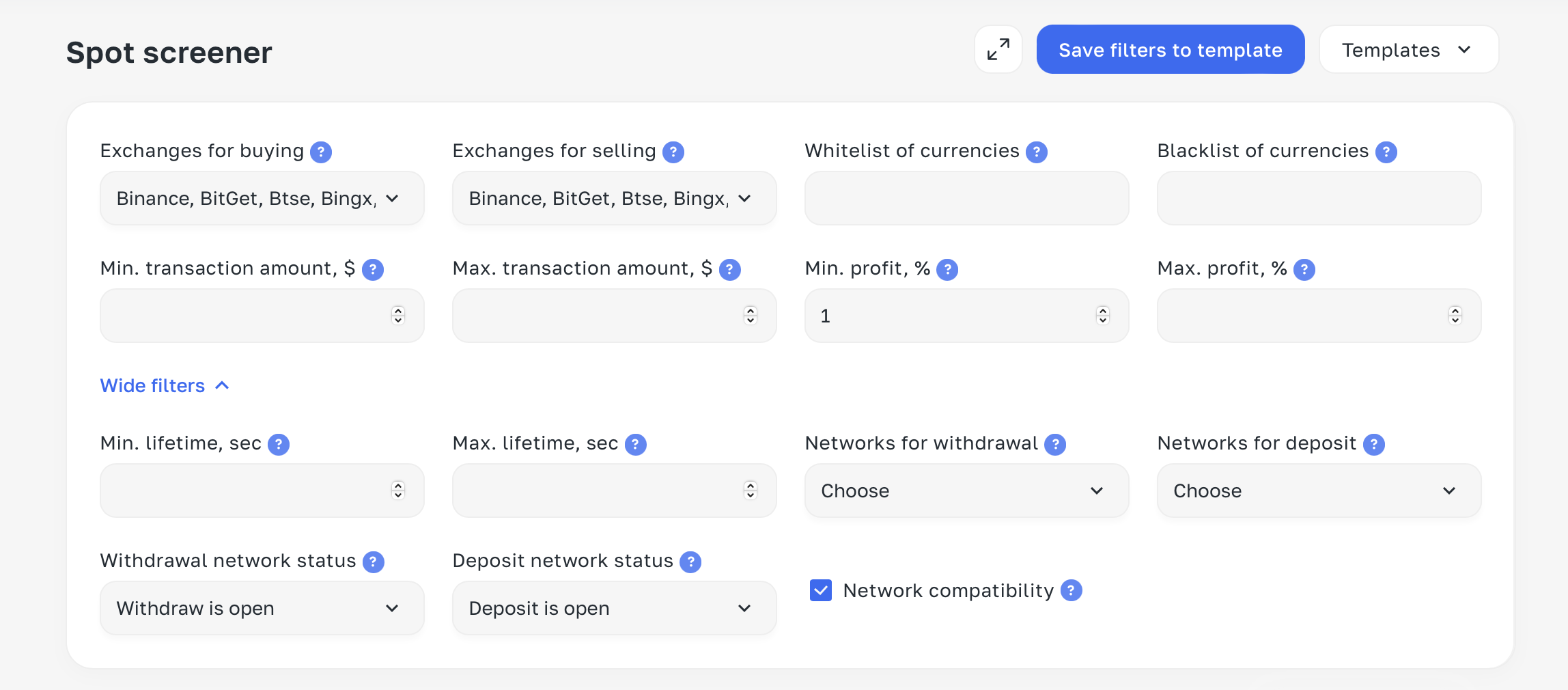
Exchanges for Buying
In this section, select the exchanges where you have passed KYC or where you can pass it. On these exchanges, we will buy coins.
Exchanges for Selling
In this section, select the exchanges where you have passed KYC or where you can pass it. On these exchanges, we will sell coins.
Whitelist of currencies
If you add any coins to this list, only those coins will be displayed in the scanner (experienced arbitrageurs add their "favorite" coins that they trust; this can also be used to monitor spreads for a specific coin).
Blacklist of currencies
This is where you add coins that you do not want to see in your scanner. Once added to the blacklist, they no longer appear.
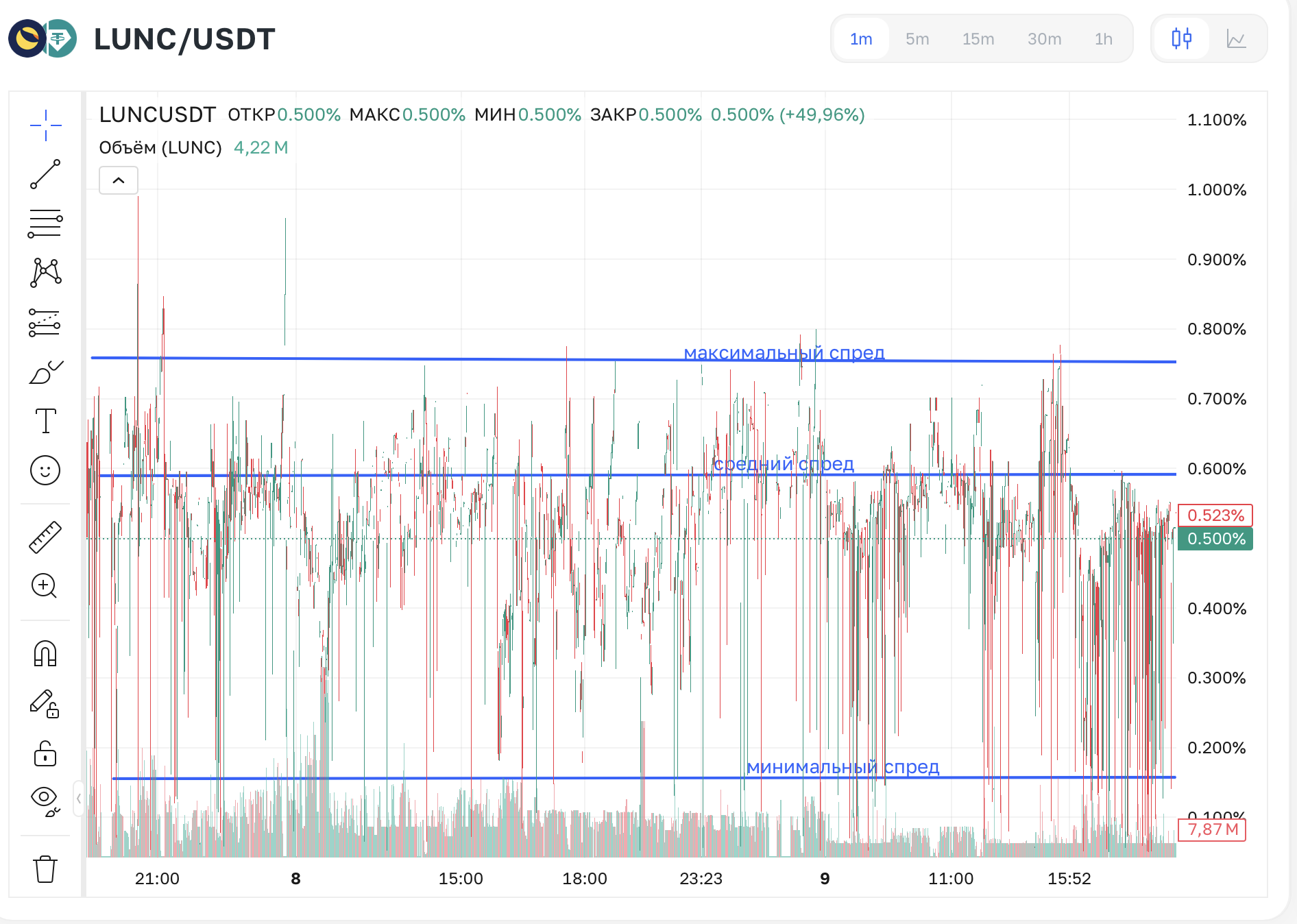
With our latest update, "SPREAD HISTORY," the need for a blacklist has disappeared because you can now track whether there have been spreads for coins on this history chart.
Example
Here you can track:
1. Minimum spread
2. Average spread
3. Maximum spread
Min. transaction amount and max. transcaction amount
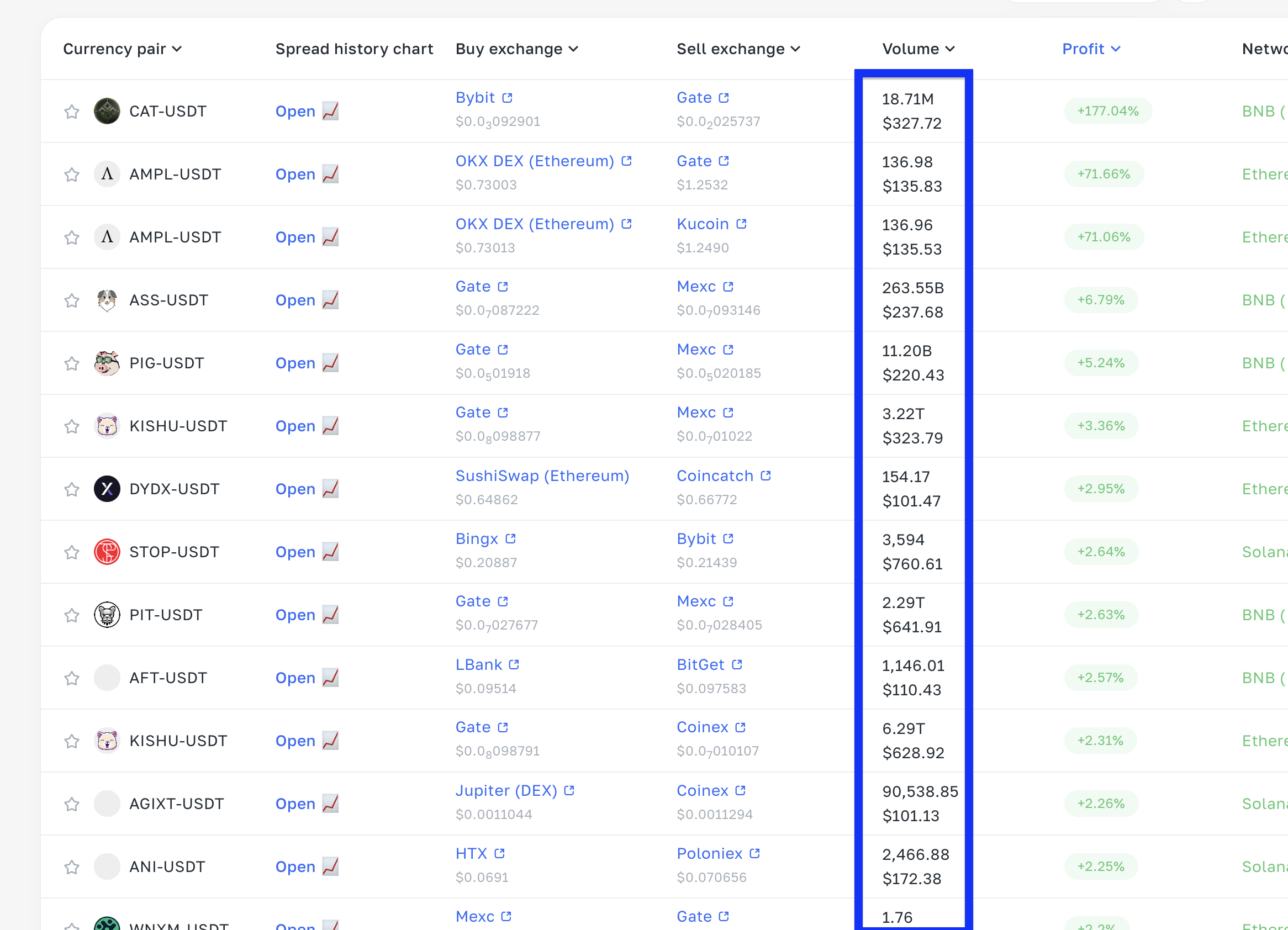
The minimum and maximum values of displayed spreads.
Example:
If you enter 100 in the min. trade amount, only trades from $100 will be displayed.
If you enter 10,000 in the minimum value, trades from $10,000 turnover will be displayed:

Minimum and Maximum Profit
The percentage value that will limit the display of trades based on the minimum and maximum spread.
Example:
Minimum: 1
Maximum: 2
With these settings, you will see trades with spreads ranging from 1% to 2%.
Min. lifetime (sec) and max. lifetime (sec)
Setting this parameter will filter trades based on their minimum and maximum lifetime.
Withdrawal Networks and Deposit Networks
Here, you need to select the networks you want to work with.
Example:
If you select the BNB network, spreads will appear for coins that can only be transferred via the BNB network.
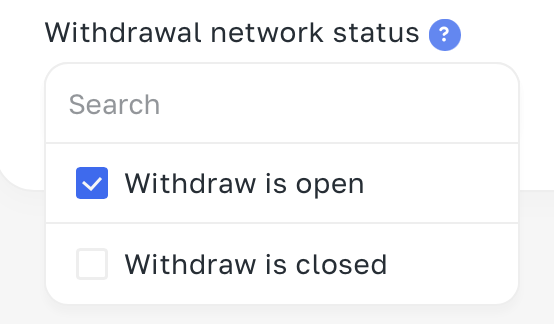
Withdrawal Network Status and Deposit Network Status
Choose whether the deposit for the coin you are trading should be open or closed.
It’s better to check these boxes so that both withdrawal and deposit are open, allowing us to easily transfer coins between exchanges.

Network Compatibility
Check the box if you want to work without "bridges."

WHEN TRANSFERRING BETWEEN EXCHANGES, IT IS IMPORTANT THAT THE DEPOSIT AND WITHDRAWAL NETWORKS MATCH.

bnb-bnb eth-eth e.t.c.
P.S. AFTER YOU HAVE CONFIGURED EVERYTHING, DON’T FORGET TO SAVE YOUR TEMPLATES.

Want to learn more about crypto arbitrage?
Get a subscription and access the best tool on the market for arbitrage on Spot, Futures, CEX, and DEX exchanges.